Introduction
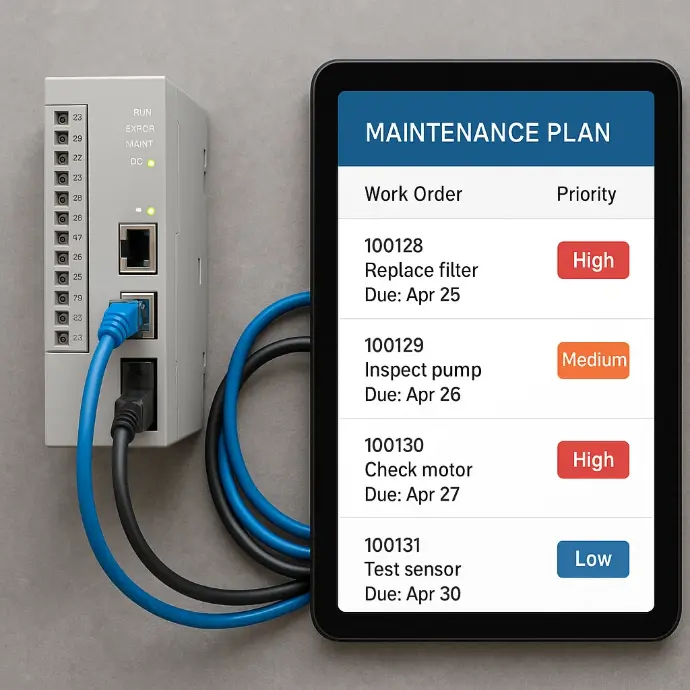
Opensource CMMS and OEE software is self-hosted alternative to expensive systems
This guide explains how to install and run the open-source OEE and CMMS software locally using Docker.
The platform is designed for manufacturers, CNC workshops, and factories that want a self-hosted solution to track production efficiency, machine downtime, and maintenance operations.
By following this step-by-step tutorial, you will deploy the system locally, configure the environment, and access the dashboard within minutes.
This guide is for:
- Factory owners testing OEE software
- Workshops wanting local monitoring
- Developers evaluating the platform
- System integrators preparing deployments
- Machine manufacturers (OEMs)
System requirements
Before starting, make sure you have:
- You have git installed How to Install
- Docker installed on your computer or server How to Install
- Basic command line knowledge
- A local machine or industrial PC for testing
The system runs on Windows, Linux, or macOS.
Step 1 – Download the software and set variables
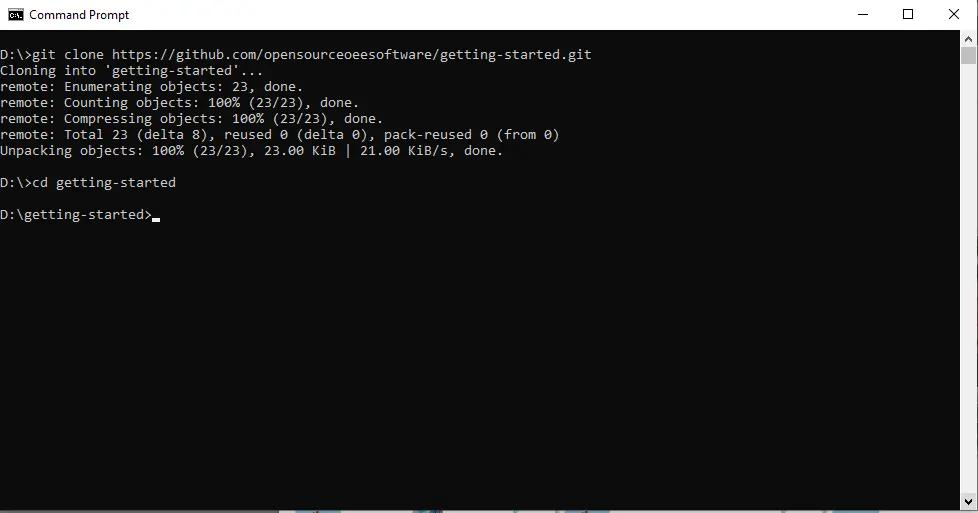
Clone the repository from GitHub:
git clone https://github.com/opensourceoeesoftware/getting-started.git
# then you can go into the project directorycd getting-started
After you download the software, in the project directory, create a ".env" file, and past the following
Step 2 – Configure the software
Inside the project folder, copy the .env.example file and rename the copy to .env:
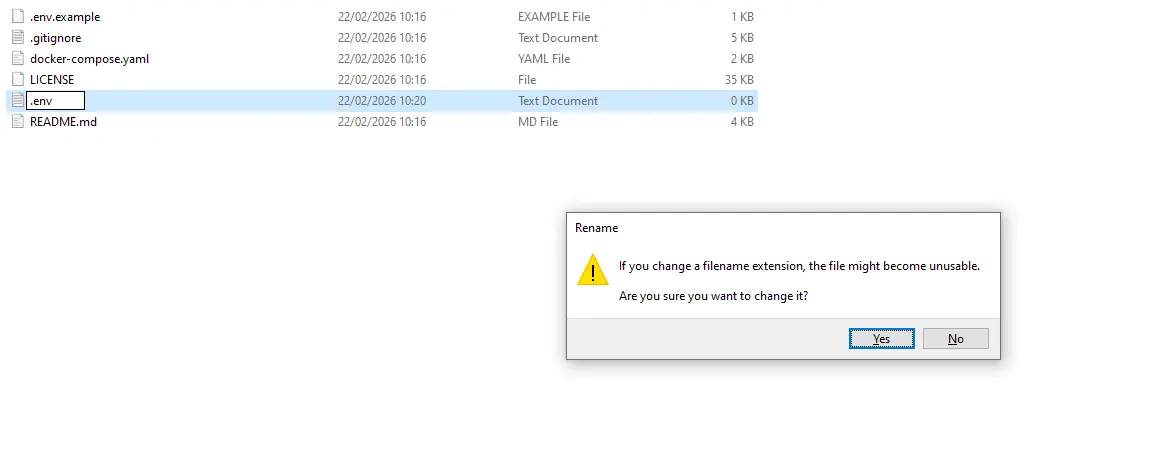
This file contains the environment configuration required to run the platform. If you are deploying in a production environment, make sure to change all default secrets and passwords, use strong credentials, and store them securely.
If you require a secure production deployment, industrial integration, or on-site installation support, feel free to contact our certified partners for professional assistance.
Step 3 – Start the App
now you can execute the following command, if you set DEMO=true the app will create a demo account for you with data.
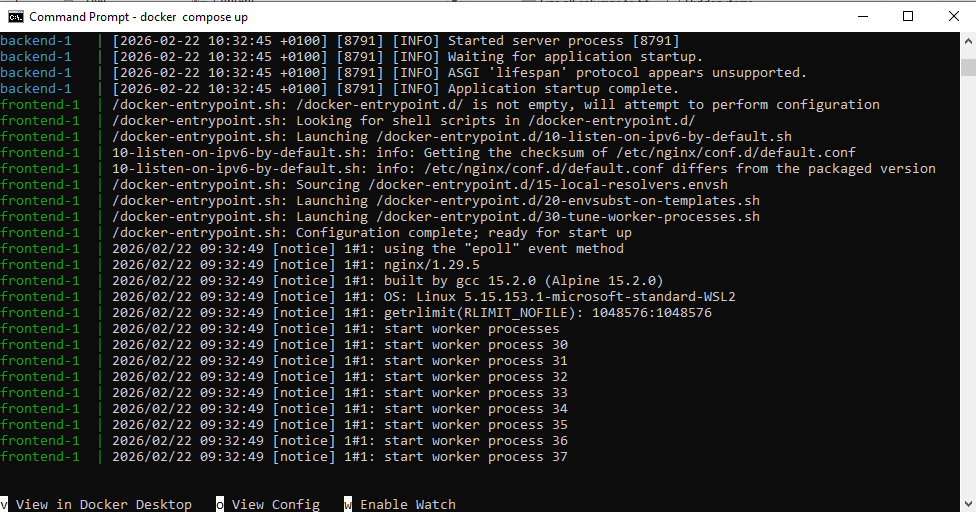
docker compose up

The first installation might take few minutes, a successful screen should look something like this, "note the keyword fronend"
Step 4 – First overview
You can now access the app through this link:
http://localhost
you can use the same credentials you set in the .env file, defaults are:
username = admin
password = changeme
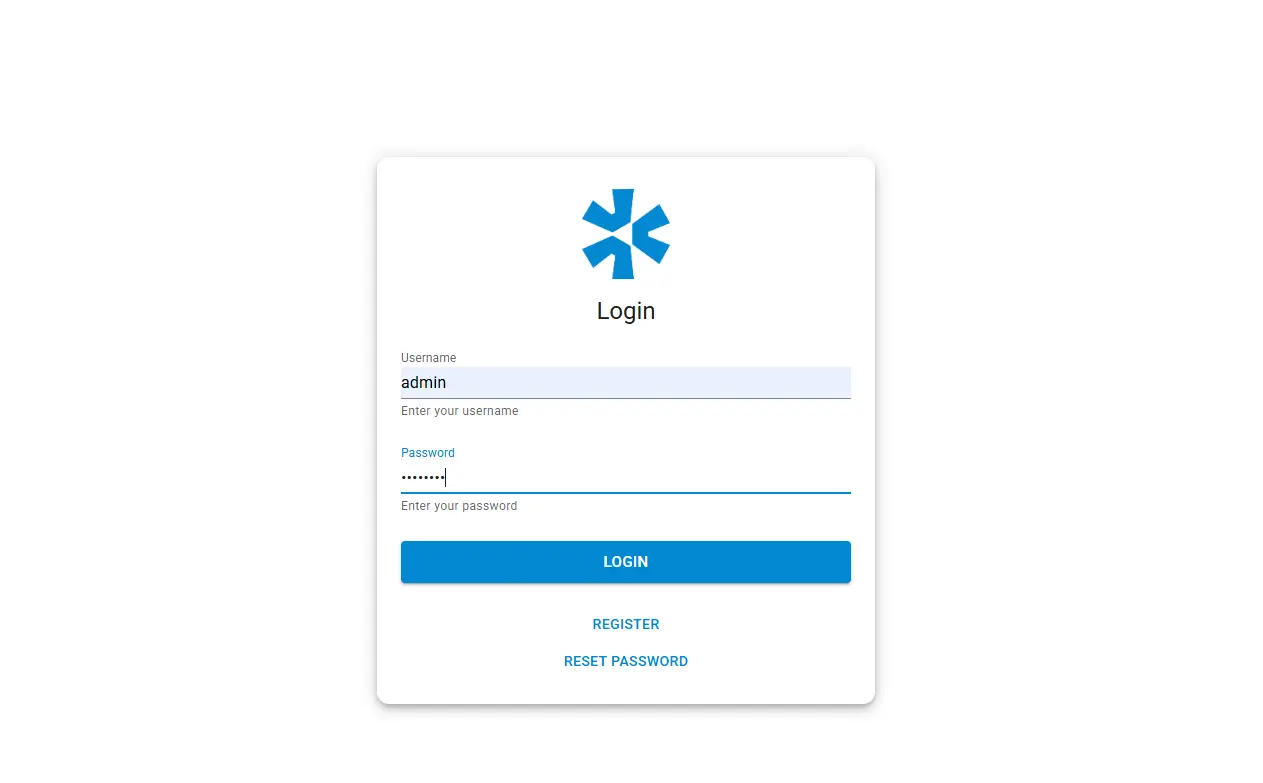
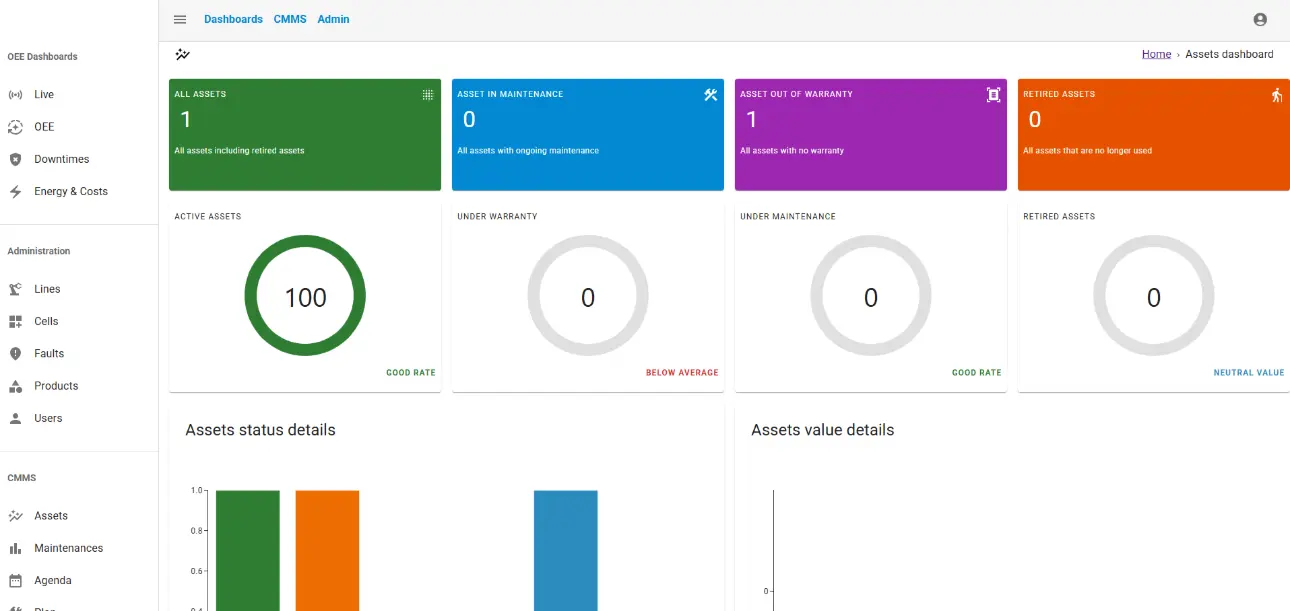
Now you can do the following:
- Access the dashboard
- Track machine performance
- Manage maintenance
At this stage the system runs fully locally and can already be tested.
Expert Guidance for Long-Term Success
If you plan to deploy the platform in a production environment, connect machines, or integrate with your factory systems, you can contact our integration partners for professional deployment and support.